



Service Portal guide
Six steps from sign-up to your monthly report. An agent walks with you through each step and reminds you what to do.
I just signed up. What do I do next?

IntakeOpen the Store and pick a plan, then add your website under Assets. I will guide you through each step.
Six steps to use the Service Portal
Sign up and log in
Create a Service Portal account with your company email. One account manages many systems.
- Click Sign up at the top right of the website
- Enter your email, set a password and confirm your email
- Invite colleagues to the same company account
Tip from the Intake agentYou can invite your accountant to receive invoices and sign off work.Pick a plan in the Store
The Store lists subscription plans and review plans. Subscription plans are priced per month; reviews are quoted by scope.
- Open the Store and choose the type of system
- See what each plan includes and pick the right one
- Pay by bank transfer or VietQR
Tip from the Intake agentNot sure which plan to choose? Ask me in the chat box and I will suggest one for your system.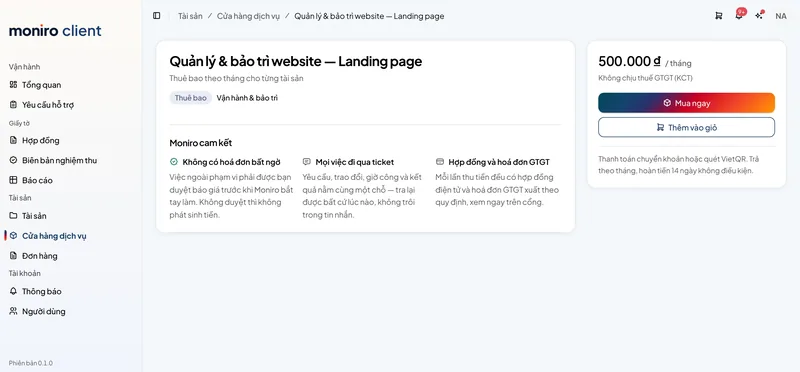
Add a digital asset
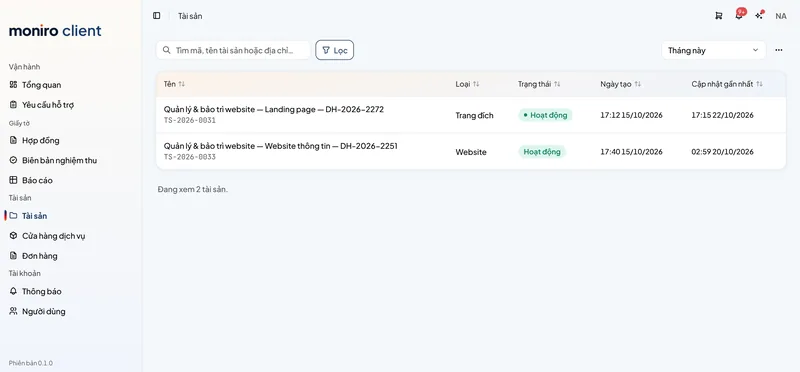
Declare a website, app or AI system. The agents start monitoring as soon as you grant access.
- Go to Assets and click Add
- Enter the address and the type of system
- Grant access as guided, read-only by default
 Tip from the Monitoring agentEvery Moniro access is logged, and you can see the log under Assets.
Send a request, approve the quote
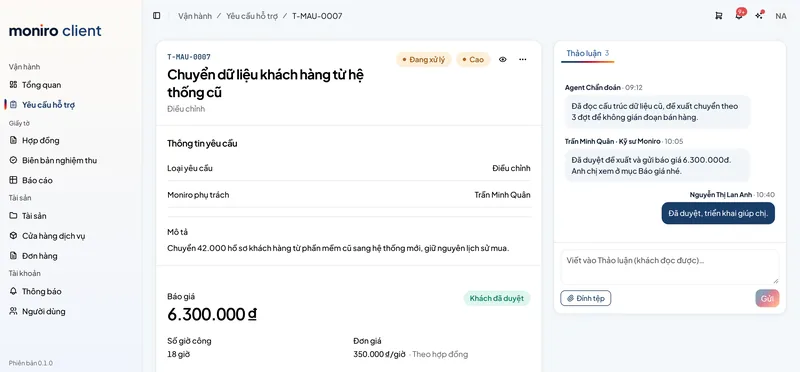
Each request is a ticket. Work outside your plan comes with a quote, and Moniro starts only after you approve.
- Go to Requests and click Create request
- Describe the work and attach a screenshot if you have one
- Read the agent proposal and the engineer quote, then click Approve
 Tip from the Diagnosis agentFor an urgent incident, choose Urgent: the agent opens a ticket and alerts an engineer at once.
Sign off in the portal
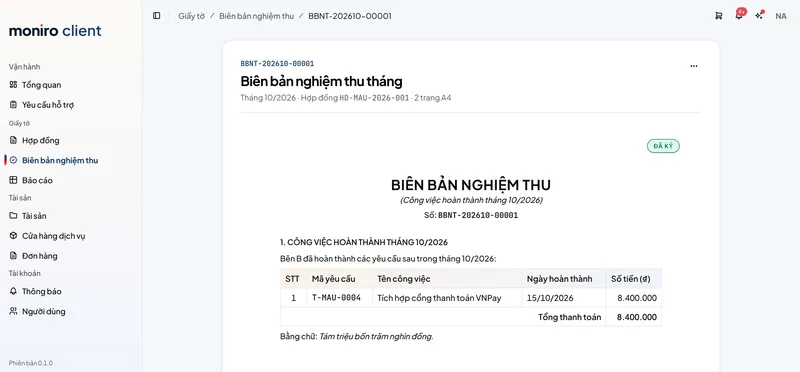
When the work is done, you check it and sign the acceptance record right in the Portal.
- Open the finished ticket
- Check the result and add a note if needed
- Click Sign off
 Tip from the Deployment agentThe signed acceptance record is kept so you can match it at settlement.
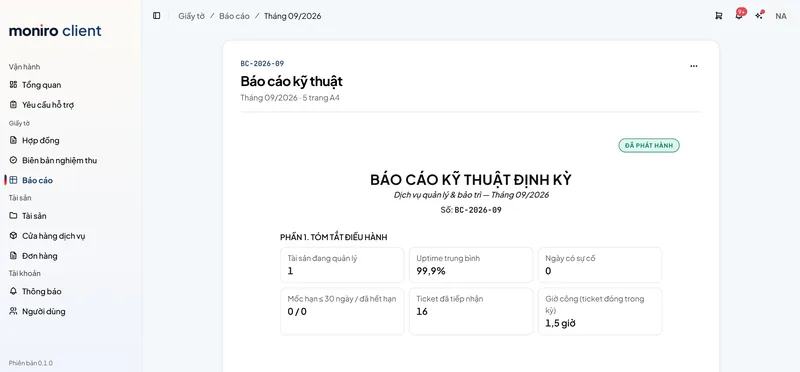
Read the monthly report
Every month: uptime, incidents, work done and suggestions for next month.
- Go to Reports and choose a month
- Download the PDF to send to your board
- Click any task to see its original ticket
 Tip from the Reporting agentI sum up the report in 3 lines at the top, so 30 seconds is enough to get the picture.
Questions about using the Portal
Cannot find your answer?
Ask the Intake agent